DockWorkspace
DockWorkspace is the workbench container for IDE-like windows. It combines a
central tab area with retractable, resizable side panes exposed through fixed dock bars.
Use it for project explorers, database browsers, terminals, output panes, chat panels, and
any application where tools must stay available without consuming permanent screen space.
Mental Model
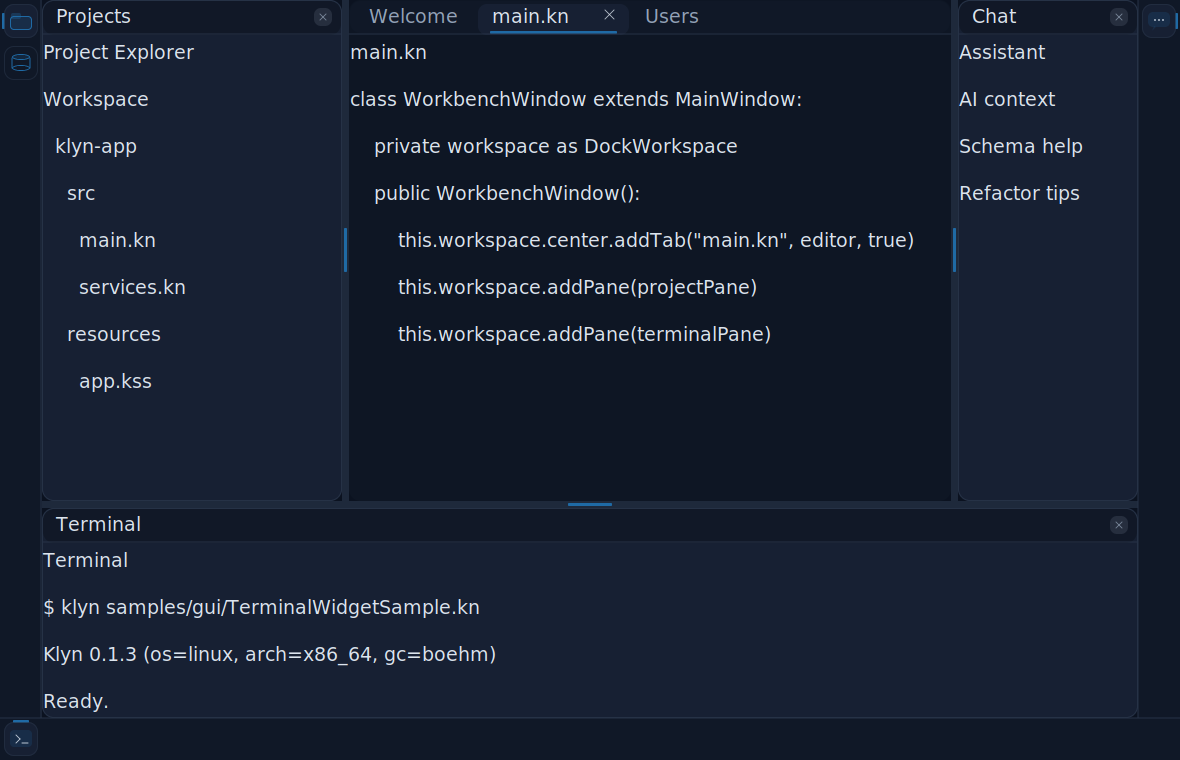
A workspace has one central area and up to four side regions. The center is a
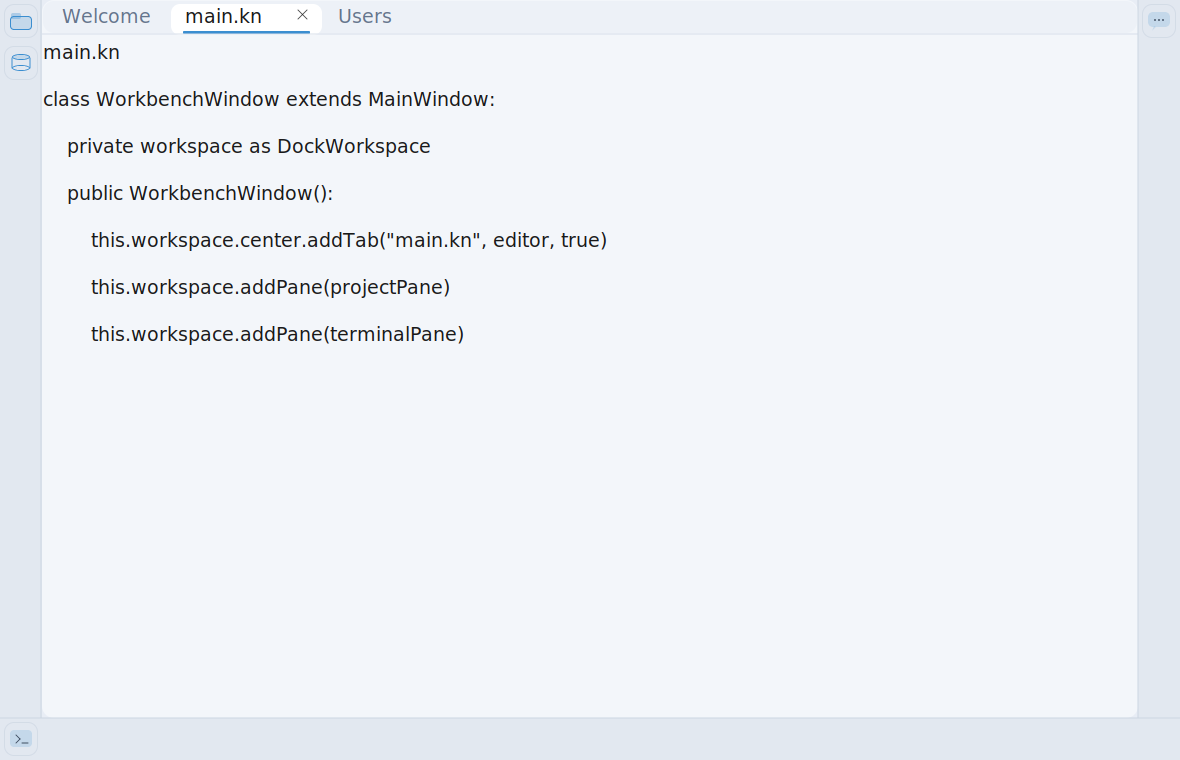
DockCenterArea, which behaves like a TabWidget. Each side contains
DockPane instances. A collapsed pane is hidden, but its button remains visible in
the matching DockBar. Clicking the button reopens the pane.
Center
Use workspace.center.addTab() for documents, editors, previews, and result views.
DockPane
Wraps one tool widget, owns a title, an optional icon, a side, and a current dock size.
DockBar
Fixed side strip that keeps collapsed panes discoverable and reopens them on click.
Resize Handle
Drag the separator next to an expanded pane to resize it without rebuilding the layout.
Basic Workspace
Put the workspace in a zero-spacing root layout when it must consume the whole client area. This is the typical setup for editor, dashboard, or administration applications.
import klyn.gui.windows
import klyn.gui.windows.layouts

class WorkbenchWindow extends MainWindow:

    private workspace as DockWorkspace

    public WorkbenchWindow():
        super("Workbench")
        this.size = (1100, 720)

        root = this.centralWidget
        root.padding = [0, 0, 0, 0]
        root.layout = DockLayout(spacing=0)

        this.workspace = DockWorkspace()
        this.workspace.layoutParams = DockLayoutParams("fill")
        root.add(this.workspace)

        this.workspace.center.addTab("Welcome", Label("Select a tool or open a file."), false)

        projects = Container.withLayout(VBoxLayout(spacing=8))
        projects.padding = [12, 12, 12, 12]
        projects.add(Label("Project Explorer"))
        projects.add(Button("New File"))

        database = Container.withLayout(VBoxLayout(spacing=8))
        database.padding = [12, 12, 12, 12]
        database.add(Label("Database Explorer"))
        database.add(Button("New Connection"))

        terminal = TerminalWidget()
        terminal.singleTerminal = true

        this.workspace.addPane(DockPane("Projects", projects, DockSide.LEFT))
        this.workspace.addPane(DockPane("Database", database, DockSide.RIGHT))
        this.workspace.addPane(DockPane("Terminal", terminal, DockSide.BOTTOM))

win = WorkbenchWindow()
win.centerIn(null)
win.show()
win.run()
The workspace owns the geometry of its bars, panes, resize handles and center area. The hosted widgets remain ordinary Klyn widgets; they can use any layout and any KSS styling.
Pane Placement
A pane side is one of DockSide.LEFT, DockSide.RIGHT,
DockSide.BOTTOM, or DockSide.TOP. The workspace shows at most one
expanded pane per side at a time. Opening another pane on the same side collapses the
previous one, which keeps the layout predictable.
projectPane = DockPane("Projects", projectExplorer, DockSide.LEFT, "assets/icons/project.svg")
projectPane.dockSize = 340
projectPane.minimumDockSize = 220

chatPane = DockPane("Chat", chatWidget, DockSide.RIGHT, "assets/icons/chat.svg")
chatPane.dockSize = 360
chatPane.isCollapsed = true

workspace.addPane(projectPane)
workspace.addPane(chatPane)
Dock-bar icons use SVG paths. Prefer square, transparent, vector icons because they scale cleanly with runtime content zoom and can use SVG hover colors without raster artifacts.
Controlling Panes
Application menus and shortcuts should call the workspace or pane methods instead of manipulating widget bounds directly. This keeps dock buttons, collapsed state and relayout synchronized.
# From a View menu or shortcut handler.
workspace.showPane("Projects", DockSide.LEFT)
workspace.hidePane("Terminal", DockSide.BOTTOM)
workspace.togglePane("Chat", DockSide.RIGHT)

# Direct pane control is useful when a tool closes itself.
terminalPane.collapse()
projectPane.expand()
findPane() returns the pane object when you need to update its title, replace its
content, or inspect its current collapsed state.
Center Tabs
The center area is a document surface. Add editors and result views as tabs. Non-closeable tabs work well for welcome pages or dashboards; closeable tabs are better for files and query results.
workspace.center.addTab("Welcome", Label("Ready"), false)
workspace.center.addTab("main.kn", codeEditor, true)
workspace.center.addTab("Users", tableView, true)

workspace.center.select(workspace.center.findTab("main.kn"))
Since DockCenterArea derives from TabWidget, it supports the same
close buttons, active-tab selection and optional add-tab pattern.
Document tab context menu
A secondary click on a DockCenterArea tab opens a standard document menu with
Close, Close Other Tabs,
Close Tabs to the Right, and Close All Tabs. Tabs created
with closeable = false are never removed by these commands. This behavior belongs
to the workbench center area: a standalone TabWidget remains suitable for static
tabs and does not install a context menu implicitly.
workspace.center.closeOtherTabs(workspace.center.activeIndex)
workspace.center.closeTabsToRight(workspace.center.activeIndex)
workspace.center.closeAllTabs()
Applications can enrich the menu through tabContextMenuOpening. The event exposes
the selected tab and the mutable Menu after the standard entries have been added.
Custom entries use the regular MenuItem.click() action model.
import klyn.gui.windows.events

class LogTabMenuItem extends MenuItem:

    private _title as String

    public LogTabMenuItem(title as String):
        super("Log tab name")
        this._title = title

    public override click() as Void:
        print("Selected tab: " + this._title)

workspace.center.tabContextMenuOpening += lambda(event as DockTabContextMenuEvent):
    event.menu.addSeparator()
    event.menu.addItem(LogTabMenuItem(event.title))
KlynEditor uses this extension point for document-specific Save and Run actions. The graphical test runner uses the same center-area implementation and adds Save report, so closing behavior remains identical in both applications.
DockBar.childCount reports the number of pane buttons, while
workspace.center.childCount reports the number of hosted tab widgets.
KSS and Edge-to-Edge Layouts
DockWorkspace, DockPane, DockBar, and
DockCenterArea have dedicated KSS selectors in the built-in light and dark themes.
For professional workbench applications, the root container usually has no padding so the
workspace touches the menu bar and window edges.
DockWorkspace {
    background: var(--surface-alt);
    border-color: var(--border-subtle);
}

DockPane {
    background: var(--surface-elevated);
    border-color: var(--border-subtle);
}
MainWindow is edge-to-edge by default; no window-specific style class is
needed. Forms can opt into a theme-scaled margin with
window.centralWidget.styleClass = "spaced-content", followed by
window.applyTheme(). Custom container styles can also declare their own
margins and padding without changing the window or menu bar.
Production Pattern
In larger applications, build each pane as a reusable widget and keep the workbench responsible
only for composition and routing. This is the pattern used by KlynEditor: project
explorer on the left, database explorer as another left pane, terminal and execution panes at
the bottom, chat on the right, and editors in the central tab area.
Put persistent tools in DockPane. Put documents and transient result views in
workspace.center. Keep modal decisions in LightBox dialogs rather
than in permanent side panes.
Next Step
Continue with TerminalWidget to embed real shell sessions in a docked bottom pane, or return to Slider Widget for input controls.